
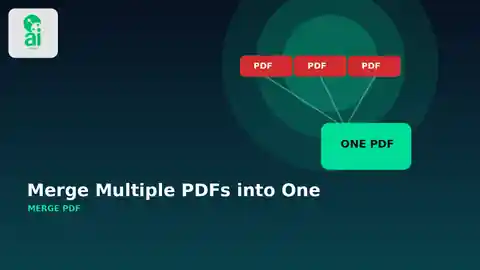
Five PDFs for one task is usually four files too many. It happens all the time: a signed form arrives separately from its attachment, scanned pages are saved as individual documents, receipts are split across downloads, or a project report is scattered into several files that should really travel together.
Quick answer: If the goal is simply to combine several PDF files into one cleaner document, a dedicated Merge PDF tool is usually faster than opening a full PDF editor. The important part is getting the file order right and checking the final document before you send or archive it.
That is where the AiNowly Merge PDF tool fits. It is part of the AiNowly Free Tools collection, which groups small browser utilities for PDFs, images, documents, and everyday file tasks. This guide focuses on the practical side: when merging PDFs makes sense, how to prepare the files, what to check afterward, and what a merger cannot fix for you.
Start With the Real Problem: Too Many Separate Files
Merging is not about making a PDF “better.” It is about making a set of related pages easier to handle. One file is simpler to email, easier to upload to a portal, cleaner to archive, and less likely to lose an important attachment along the way.
- A contract plus its signed annexes.
- Several scanned pages that belong to one application.
- Monthly receipts or invoices that need to be stored together.
- Lecture notes exported as separate PDF sections.
- A portfolio, proposal, or report assembled from multiple sources.
If the files are unrelated, merging them can actually make organization worse. The tool is most useful when the documents belong to the same workflow and should stay together after the task is finished.
The Three-Step Workflow
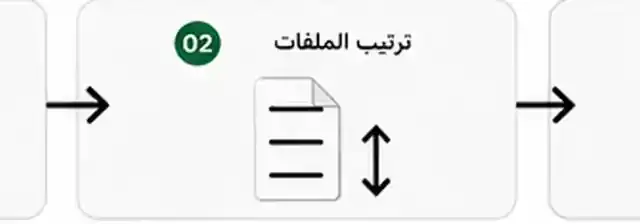
The cleanest approach is intentionally simple: choose the PDFs, put them in the correct order, then create and download the combined file. Before you begin, rename the source files if their order is confusing. Names such as 01-cover.pdf, 02-report.pdf, and 03-appendix.pdf are much easier to manage than a folder full of files called scan1, final, and final-new.
Before You Merge: A 60-Second Checklist
- Open every source PDF. Make sure none is corrupted or blank.
- Check page orientation. A sideways scan will still be sideways after merging.
- Confirm the order. The merger follows the sequence you give it.
- Remove duplicate files. It is easy to add the same scan twice when filenames are similar.
- Keep the originals. Do not treat the merged copy as your only backup.
This short preparation step prevents most of the annoying mistakes people blame on PDF tools later.
Which Situations Benefit Most?
| Situation | Why merging helps | What to check |
|---|---|---|
| Job or university application | Creates one upload instead of several attachments | Required page order and file-size limits |
| Invoices and receipts | Keeps one period or project in a single archive | Chronological order and duplicates |
| Contracts | Keeps the main agreement and appendices together | Signatures, page count, and final version |
| Scanned paperwork | Rebuilds one document from individual scans | Orientation, missing pages, and readability |
| Reports and portfolios | Combines sections from different sources | Cover page, contents, and transitions |
Merging Is Not the Same as Editing
This distinction matters. A Merge PDF tool combines documents; it does not automatically rewrite text, correct a bad scan, remove confidential details, fix crooked pages, or reduce a huge file to a tiny size. Those are separate jobs.
If your combined PDF becomes too large for email or a website form, compression may be the next step. If you need pages in a different order, an organize-pages tool may be more appropriate. If the source started as photographs, the Images to PDF workflow may make more sense before merging. AiNowly’s strength here is that these small jobs can live inside one broader toolbox rather than forcing you to search for a completely different site every time.
What About Privacy?
Documents can contain names, addresses, financial details, signatures, or internal business information, so privacy should be part of the decision whenever you use an online file tool. AiNowly’s browser-tool approach emphasizes local processing for its utilities, which can reduce unnecessary file uploads for supported tasks.
Even with browser-based processing, good document hygiene still matters. Avoid leaving sensitive files in shared download folders, remove temporary copies from public computers, and confirm what type of document you are handling before using any web utility. Highly sensitive legal, medical, identity, or financial files deserve extra caution regardless of the tool.
The Mistake I Would Avoid: “Merge First, Check Later”
A merged PDF can look perfect at first glance while still containing a duplicated page, an upside-down scan, or an appendix in the wrong place. The final quality-control step is not complicated: open the finished document, scroll from the first page to the last, and compare the page count with what you expected.
If the document is important, also test the actual destination. A file that opens correctly on your laptop can still exceed an upload limit or display differently in a portal preview. Keep the original files until the combined document has been accepted or delivered successfully.
A Better PDF Workflow Is Usually a Chain of Small Steps
- Scan or collect the source pages.
- Convert images to PDF if necessary.
- Merge related files into one document.
- Review page order and readability.
- Compress only if the final file is too large.
- Keep an untouched backup of the originals.
This is the same reason a focused image tool can be useful. In our guide to AiNowly’s Free Image Compressor, the value was not replacing a professional editor; it was removing unnecessary friction from one common task. A Merge PDF tool follows the same logic.
FAQ
Does merging PDFs change the text inside them?
Normally, the purpose of merging is to place existing PDF documents into one combined file rather than rewrite their content. You should still review the output, especially when the sources contain complex forms or unusual formatting.
Should I delete the original PDFs after merging?
Not immediately. Keep the originals until you have checked the final document and confirmed that it was uploaded, emailed, printed, or archived successfully.
What if the merged PDF is too large?
Use a compression step after you confirm the page order. Compressing before you know the document is correct can create extra work if you later need to rebuild it.
Can a merge tool fix missing or blurry pages?
No. A merger combines what you give it. Missing pages need to be added, and poor-quality scans need to be rescanned or improved separately.
Final Takeaway
Merge PDF is one of those tools that is valuable precisely because the job is ordinary. You do not need a complicated editor to turn several related PDFs into one organized document. You need the correct files, the correct order, and a quick review after the merge.
If your workflow regularly involves applications, scans, invoices, contracts, reports, or study material, keeping a simple merger close by can save a surprising amount of file-management time. You can find the tool inside AiNowly Free Tools.


