
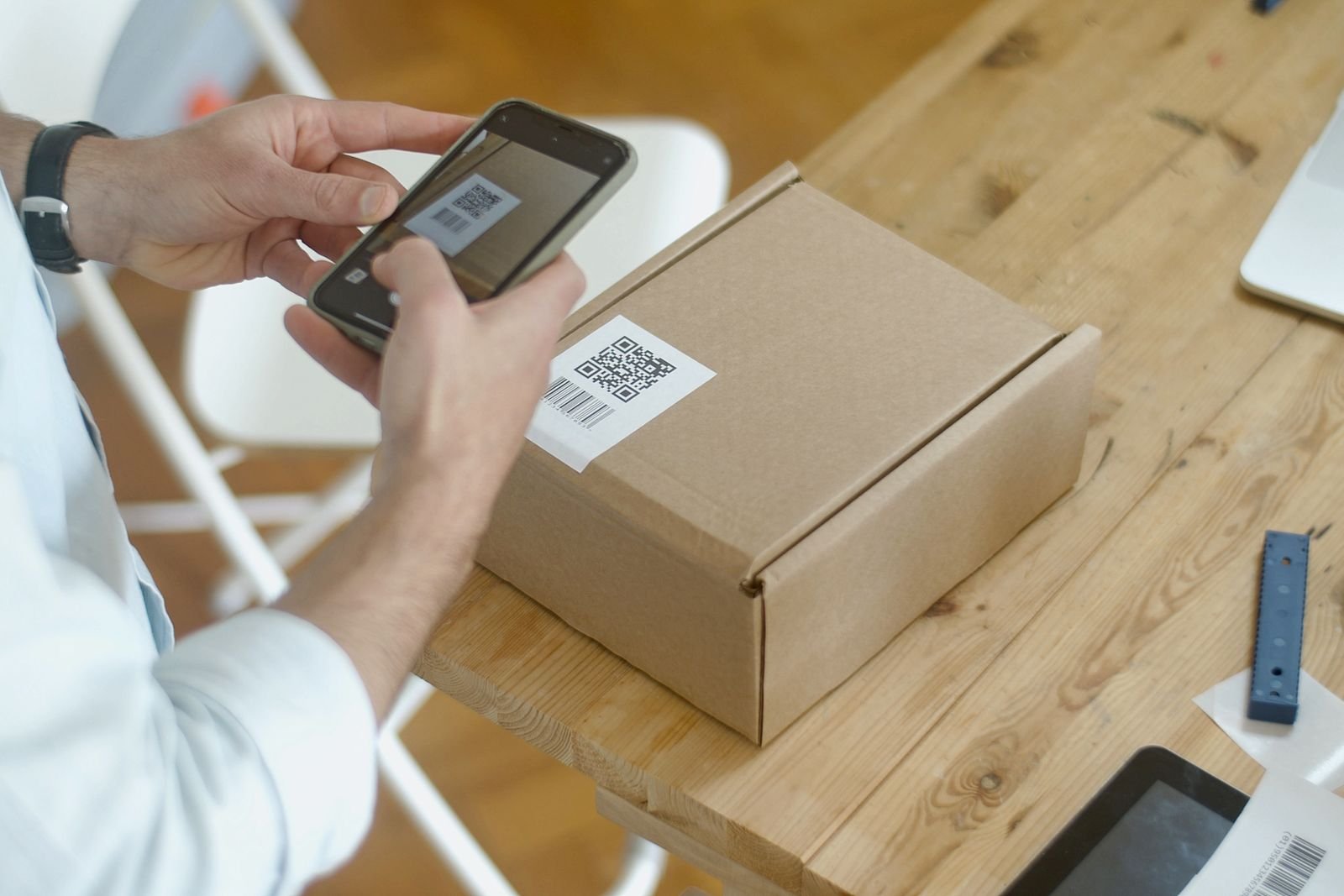
QR codes are everywhere because they remove one tiny but annoying step: typing. A customer can scan a code instead of entering a long website address. A guest can join Wi-Fi without copying a complicated password. An event attendee can open a registration page from a poster in seconds. The idea is simple, but a useful QR code still needs the right content, good placement, and a quick test before it goes public.
Quick answer: A QR Code Generator is useful when you want to turn a URL, Wi-Fi connection, email action, or short piece of text into something people can open with a phone camera.
The AiNowly QR Code Generator appears in the Utilities section of AiNowly Free Tools. AiNowly says its browser tools are free, require no signup, and process files or data in the browser. This guide explains how to choose the right QR content, avoid common mistakes, and create codes that people can actually scan.
What a QR Code Is Really Doing
A QR code is a visual way to encode information that a compatible camera or scanner can read. The code itself does not magically create a website, Wi-Fi network, or email account. It simply stores the information needed to perform an action after the user scans it.
That distinction helps when planning a campaign. If the code contains a website URL, the landing page still needs to be fast, mobile-friendly, and useful. If it contains Wi-Fi credentials, those credentials still need to be correct. The QR code is the bridge, not the destination.
Four Practical Types of QR Code Content
AiNowly’s tool supports common use cases including URLs, Wi-Fi, email, and plain text. Each type fits a different situation.
URL QR Codes
These are the most familiar. Use them on menus, flyers, packaging, business cards, signs, or printed instructions when the next step happens on a web page. Keep the destination relevant to the physical context. A restaurant table code should lead directly to the menu, not a generic homepage that makes the customer search again.
Wi-Fi QR Codes
A Wi-Fi QR code can reduce friction in homes, offices, clinics, waiting areas, cafés, and events. Instead of telling every guest a long password, you can place a code where authorized visitors can scan it. Treat the printed code like the password itself: do not display it publicly if the network should remain private.
Email QR Codes
Email codes can open a prepared message with an address and, depending on the data you include, a subject or starter text. They can work well on support cards, event materials, trade-show displays, and printed feedback requests. Keep the message short so the user can review it before sending.
Plain-Text QR Codes
Plain text is useful when you want the scan to reveal a short instruction, reference number, location note, or other information without opening a website. It is less flexible than a URL because you cannot update the text later without creating a new code, so use it for information that is unlikely to change.
A Practical QR Code Workflow
- Choose the action. Decide what should happen immediately after the scan.
- Enter the correct data. Use the final URL, network details, email address, or text.
- Generate the code. Create the QR image and save it at a useful resolution.
- Test on multiple phones. Scan before printing or publishing.
- Place it with context. Tell the user what they will get after scanning.
That last step is often ignored. A mysterious QR code with no explanation can feel untrustworthy. A short label such as “Scan for the menu,” “Join guest Wi-Fi,” or “Open registration” gives people a reason to use it.
Size, Contrast, and Printing Matter
A technically valid QR code can still fail in the real world if it is printed too small, placed on a busy background, stretched, blurred, or covered by another design element. High contrast is your friend. A dark code on a light, uncluttered background is usually easier for cameras to detect.
Leave clear space around the code. Do not crop tightly against its edges. If the code is going on a poster, packaging, or sign, test it at the actual viewing distance. Something that scans perfectly from a computer screen may be frustrating when printed small and placed behind reflective glass.
Test the Destination, Not Just the Code
Scanning successfully is only half the test. Open the destination and complete the action like a real user. Does the page load on mobile? Is the form readable? Does the Wi-Fi connection work? Is the email address correct? If a link redirects, does it still reach the intended page?
For business use, ask someone who did not create the code to test it. Familiarity can make the creator overlook obvious problems.
Static Codes and Changing Links
If a QR code stores a destination directly, changing that destination usually means generating and printing a new code. This is why it is smart to use a stable URL for printed materials. If you know the final page may change, point the code to a permanent page on your own website and update the content behind that page instead of constantly changing the printed code.
This is especially useful for product packaging, signs, or business cards that may remain in circulation for months.
Privacy and Security Considerations
A QR code makes information easy to scan, which also means you should be careful about what you encode. Do not place private credentials, personal data, or sensitive internal links in a publicly visible code. For Wi-Fi use, consider a separate guest network instead of exposing access to an internal business network.
Users should also know what they are scanning. Clear labels and trustworthy placement reduce uncertainty. Businesses should avoid using QR codes to disguise destinations or create misleading calls to action. A good code saves time; it should not trick the user.
Useful QR Code Ideas for Small Businesses
- Link packaging to setup instructions or a product guide.
- Place a menu or booking link at a counter or reception desk.
- Add a review or feedback link to a receipt card.
- Share guest Wi-Fi in a waiting area.
- Open a contact or support email from printed material.
- Connect an event poster to registration details.
- Send users to a mobile landing page with current offers.
Keep the experience focused. One QR code should usually have one obvious purpose. A landing page overloaded with ten unrelated actions defeats the convenience that the code was supposed to create.
Common QR Code Mistakes
- Printing before testing the final destination.
- Using a temporary or misspelled URL.
- Making the code too small for the viewing distance.
- Placing it on a low-contrast or highly patterned background.
- Cropping away the clear margin around the code.
- Showing a code with no explanation of what it does.
- Encoding private credentials in a place anyone can scan.
FAQ
Can a QR code open a website?
Yes. A URL QR code can store a web address that the phone offers to open after scanning.
Can I use a QR code for Wi-Fi?
Yes, if the generator supports Wi-Fi data. Protect the code appropriately because anyone who can scan it may be able to use the encoded network credentials.
Should I put a QR code on a business card?
It can be useful when it leads to a clear destination such as a portfolio, contact page, booking page, or product catalog. Make sure the code remains large enough to scan after printing.
Do I need to test a QR code before printing?
Absolutely. Scan it on more than one device and complete the full action. Printing hundreds of copies is the wrong time to discover a typo.
Final Takeaway
A QR code works best when it removes friction from a specific next step. Start with the user action, encode the correct information, keep the design readable, explain what the scan will do, and test the real destination before publishing anything.
For URLs, Wi-Fi access, email actions, and short text, a simple browser generator is often all you need. The AiNowly Free Tools collection includes a QR Code Generator alongside document, image, branding, and utility tools that can support the rest of the workflow.


