
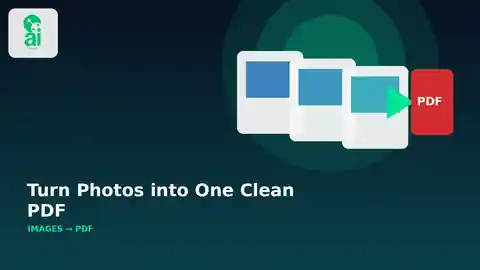
A phone camera is great at collecting documents, but not always at organizing them. Five receipt photos, six lecture pages, a signed form, or a group of scanned notes can quickly become a messy folder of JPG and PNG files when what you actually need is one PDF.
Best use case: Use an Images to PDF tool when several image files belong together and need to become a single document that is easier to upload, email, print, or archive.
The AiNowly Images to PDF tool is part of the AiNowly Free Tools collection. Instead of treating it like a complicated document editor, this guide looks at it as a simple workflow: prepare your images, place them in the right order, convert them, then check the finished PDF before using it.
Why Turn Images Into a PDF at All?
Individual images are useful while you are capturing information. A PDF is often better once you need to send or store that information as one document. The difference is mostly about organization.
- Applications: combine photographed certificates or supporting documents into one upload.
- Study material: turn whiteboard photos, handwritten notes, or textbook pages into one file.
- Receipts: group expenses for one month, trip, or project.
- Scanned paperwork: rebuild a multi-page document from phone photos.
- Portfolios and references: place selected images into a file that is easier to share or print.
The goal is not to make an image magically clearer. The goal is to make several related images behave like one document.
The Workflow in Four Simple Steps
- Collect only the images you actually need.
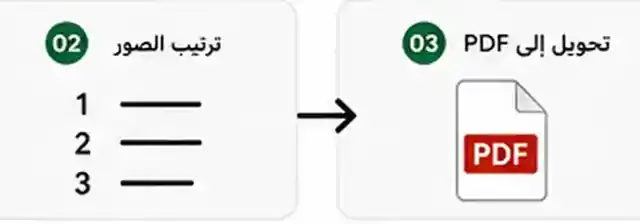
- Put them in the correct page order.
- Convert the selected images into one PDF.
- Open the result and review every page.
That final review is important. A converter cannot know that page 4 should have been page 2, or that you accidentally selected the same receipt twice.
Before Converting, Fix the Source Images First
The quality of the finished PDF depends heavily on the images you start with. If a page is blurry, badly cropped, upside down, or covered by a strong shadow, placing it inside a PDF does not repair the problem.
Before conversion, check four things:
- Orientation: rotate sideways or upside-down photos.
- Crop: remove unnecessary desk, floor, or background around a document page.
- Readability: zoom in and confirm that small text is actually readable.
- Duplicates: delete repeated photos before they become repeated PDF pages.
If your images are extremely large and the final document is meant for ordinary screen viewing, resizing or compression can also help control file size. Our AiNowly Free Image Compressor guide explains why smaller web-ready images can be useful without automatically chasing the smallest possible file.
Page Order Matters More Than People Expect
Imagine converting seven photographed pages of a form and discovering after upload that page 6 appears before page 3. The conversion may have worked perfectly, but the document is still wrong.
A simple naming habit prevents most of this. Rename your images before conversion with a clear sequence such as:
- 01-cover.jpg
- 02-application.jpg
- 03-certificate.jpg
- 04-supporting-document.jpg
This is especially useful when a device sorts files by filename rather than the order in which you selected them.
Images to PDF vs. Merge PDF: Which One Do You Need?
| Your source files | Best starting tool | Why |
|---|---|---|
| JPG, PNG, or photographed pages | Images to PDF | Turns image files into PDF pages |
| Several existing PDF files | Merge PDF | Combines PDFs that already exist |
| Images plus several PDFs | Images to PDF, then Merge PDF | Convert the images first, then combine the resulting PDF with the others |
| One huge PDF that must be smaller | PDF compression | Combining or converting is not the main problem |
If your material is already in PDF format, there is usually no reason to turn it into images and back again. Use the simpler route. Our practical Merge PDF guide covers the other side of that workflow.
A Realistic Five-Minute Document Workflow
Here is the kind of situation where Images to PDF earns its place in a toolbox. You have photographed four signed pages and two supporting documents with your phone. The portal accepts one PDF.
- Move the six photos into one folder.
- Rotate and crop anything that looks wrong.
- Rename the files in the exact page order.
- Use Images to PDF to create one document.
- Open the PDF and count the pages.
- Zoom in on signatures, dates, and small text.
- Only after that, upload the finished file.
Nothing in that process is advanced. That is the point. A focused tool is valuable when it removes unnecessary steps from an ordinary task.
Watch the Final File Size
Modern phone photos can be several megabytes each. Put ten of them into one document and the resulting PDF may be much larger than an email service or application portal allows.
If the PDF is too large, do not immediately sacrifice readability. First ask whether the original photos were far larger than necessary. A document photographed at very high resolution may contain detail that is invisible at normal page size. Reduce excessive dimensions carefully, create the PDF again, and verify that text remains sharp enough to read.
The right target is not “the smallest file possible.” The target is “small enough for the destination while still clearly readable.”
When Images to PDF Is the Wrong Tool
Conversion does not solve every document problem. It is not the best tool when:
- You need editable text rather than a picture of text.
- You need OCR to search or copy words from a photographed page.
- You must repair a damaged scan.
- You need to redact confidential information.
- Your source files are already properly organized PDFs.
Knowing what a tool does not do is just as useful as knowing what it does. That keeps a simple utility from being used for a job that needs a proper document editor or OCR application.
Privacy and Document Hygiene
Photos of documents can contain signatures, addresses, identification details, grades, invoices, medical information, or internal business data. That means file handling deserves the same care whether the source is a JPG or a PDF.
AiNowly’s free-tool approach emphasizes browser-based processing for supported utilities, which can reduce unnecessary transfers for routine file tasks. Still, avoid working with sensitive documents on shared computers, remove temporary downloads after use, and keep important originals in a secure location.
For highly sensitive legal, financial, medical, or identity documents, check the specific requirements of the organization receiving the file and use extra caution with any web-based workflow.
Quick Quality Check Before You Send
Before treating the PDF as finished, spend one minute on these checks:
- Does the page count match the number you expected?
- Is every page facing the correct direction?
- Is the sequence correct from first page to last?
- Can you read the smallest important text?
- Did any duplicate or unrelated image slip in?
- Is the file small enough for the destination?
This quality check is often more important than the conversion itself.
FAQ
Does converting images to PDF improve image quality?
No. The PDF packages the source images into document pages. If the source photo is blurry or badly exposed, correct or recapture it before conversion.
Should I compress my images before creating the PDF?
Only when file size is likely to be a problem. Keep readability as the priority, especially for forms, receipts, certificates, and documents with small text.
Can I combine the new PDF with another PDF later?
Yes. Once the images have become a PDF, a Merge PDF tool can combine that file with other PDF documents.
Should I keep the original images?
Yes, at least until the final PDF has been checked and successfully uploaded, sent, printed, or archived.
Final Takeaway
AiNowly Images to PDF is useful because it solves a very specific problem: several related pictures need to become one organized document. The best results come from preparing the source images first, putting them in the correct order, and reviewing the PDF after conversion.
For applications, scanned paperwork, receipts, study notes, and simple document bundles, that small workflow can be much faster than opening a full desktop editor. You can find it alongside AiNowly’s other document and image utilities in the AiNowly Free Tools collection.


