
The AiNowly Background Remover is a browser-based tool for turning ordinary photos into transparent PNG files without opening a full image editor.
It is designed for common tasks such as product photos, profile pictures, social graphics, presentations, and other situations where the main subject needs to be separated from its background.
Open the AiNowly Background Remover.
What Is the AiNowly Background Remover?
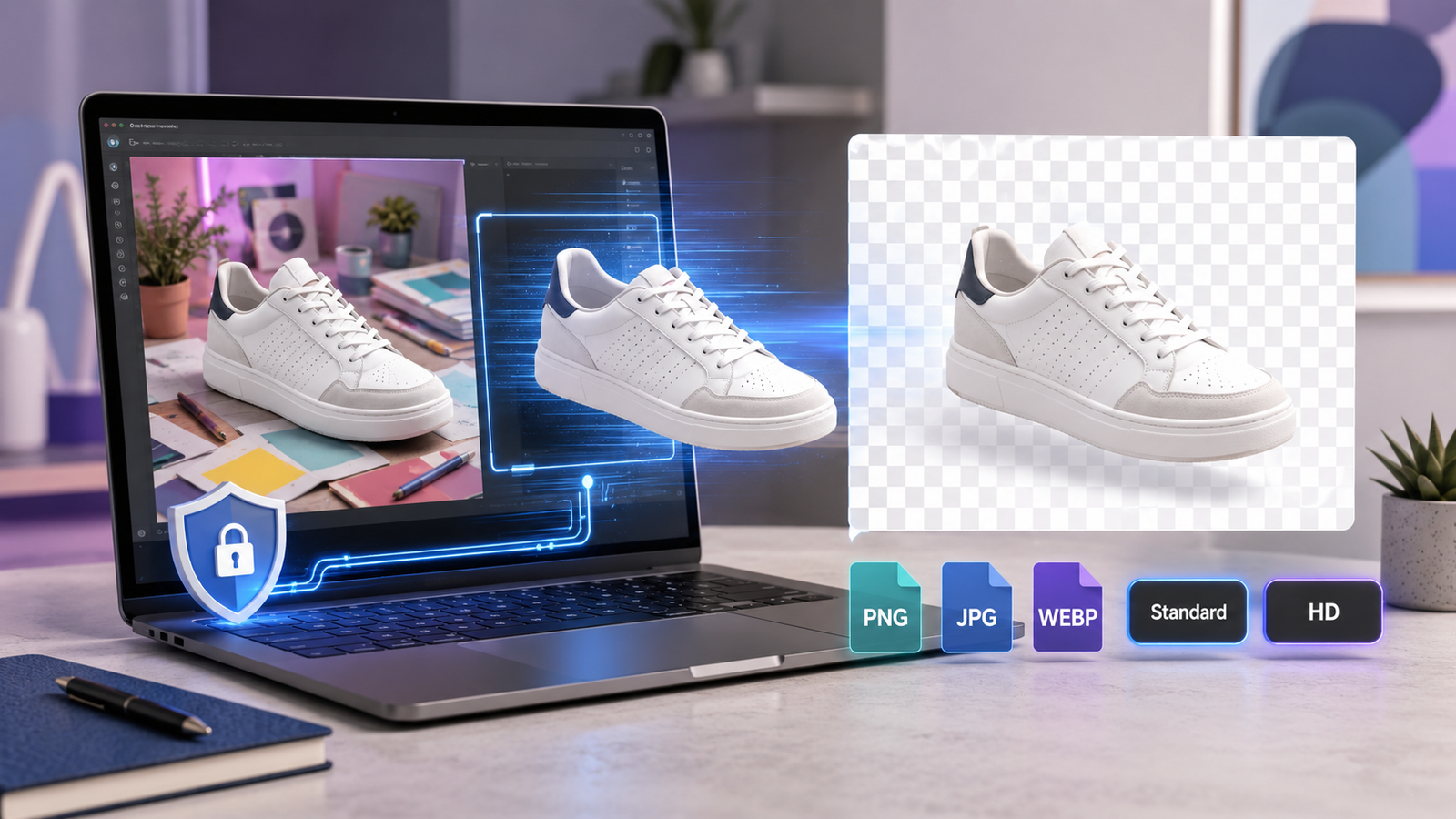
The tool automatically detects the main subject in an image and separates it from the surrounding background. The resulting cutout can be exported as a transparent PNG and placed into Canva, Illustrator, Photoshop, presentations, ecommerce listings, or other design workflows.
The tool supports PNG, JPG, and WEBP images up to the current file-size limit shown in the interface. It also offers Standard and HD download options for supported workflows.
How to Remove an Image Background
1. Open the Tool
Visit the AiNowly Background Remover on a computer or mobile device.
2. Select Your Image
Drag and drop an image into the upload area or choose a file from your device. Use a supported image format and stay within the limit displayed by the tool.
3. Let the AI Process the Photo
The tool identifies the main subject and removes the surrounding background. Processing time can vary with image size, complexity, and device performance.
4. Review the Result
Inspect difficult areas such as hair, hands, product edges, clothing, glass, reflections, and small accessories. Low contrast and complex backgrounds can make automated cutouts more difficult.
5. Download the Transparent PNG
Choose the available output option and save the transparent result to your device.
Why Browser-Based Processing Matters
AiNowly emphasizes local browser processing for supported utilities. That can reduce the need to send routine images to a remote account just to perform a simple edit.
Users should still be careful with highly sensitive personal, client, or unreleased material. Always check the current tool instructions and privacy information before processing confidential content.
Practical Ways to Use Transparent Images
Create Cleaner Product Images
Online sellers can remove distracting backgrounds and place products on a consistent white, colored, or branded surface.
Design Social Media Content
A transparent subject can be placed over gradients, photos, brand templates, thumbnails, or other visual layouts without carrying the original rectangular background.
Make Profile and Team Images
Portraits can be isolated and placed on neutral or branded backgrounds for websites, author pages, speaker profiles, and internal team pages.
Build Presentations and Marketing Materials
Transparent PNGs work well in presentations, flyers, menus, catalogs, and other layouts where the subject needs to sit naturally over text or shapes.
AiNowly Background Remover Quality Checklist
After removing the background, zoom in before downloading the final file. Check the outline around hair, shoulders, hands, product handles, thin straps, transparent objects, and areas where the subject and background have similar colors. A cutout can look perfect at thumbnail size while showing rough edges when placed on a contrasting background.
For ecommerce, place the result on the actual background color you intend to use before publishing. A faint halo that is invisible on white may become obvious on a dark or branded background. For portraits, also check whether small gaps between hair strands or around glasses were removed correctly.
If the result is not clean enough, try a sharper source image with better lighting and more separation between the subject and background. Automated removal usually performs better when the outline is visually clear.
When to Use Standard vs HD
Use the faster standard output for quick previews, social drafts, and low-resolution use cases. Choose HD when the image will be used in a larger layout, product listing, presentation, or design where edge detail matters more. Always compare the output to your actual final size rather than assuming the larger file is automatically better.
Tips for Getting Better Results
- Start with a sharp, well-lit source image.
- Use a photo where the subject is visually distinct from the background.
- Avoid excessive motion blur.
- Make sure the complete subject is visible.
- Inspect hair, fur, transparent objects, and reflections carefully.
What the Tool Cannot Do Perfectly
Automatic background removal can struggle with complex hair, transparent glass, overlapping people, soft shadows, reflections, and low-contrast edges.
For high-value advertising or detailed commercial work, the transparent result may need manual cleanup in a professional editor.
For a deeper editorial look at those limitations, see our AiNowly Background Remover review. If you need to prepare the resulting image for a website or form, the AiNowly Image Resizer guide is a useful next step.
Final Takeaway
AiNowly’s Background Remover is designed to make a common image task faster: isolate the subject, download a transparent PNG, and continue working.
It is most useful for routine product, profile, social, presentation, and marketing images where a fast browser workflow is more practical than a full desktop editor.


