Disclosure: This article is an editorial review of AiNowly’s current Background Remover workflow and documented features. It is not presented as a controlled benchmark with measured processing times or laboratory edge-quality scores.
Background removal is one of those small image tasks that can either take seconds or turn into a frustrating manual edit. Product photos, profile pictures, social graphics, and presentation assets often need a transparent background before they can move into the next stage of a workflow.
The AiNowly Free Background Remover is designed for that everyday use case: upload an image, let the tool isolate the subject, review the result, and export a transparent PNG.
What we reviewed
This review focuses on the actual workflow a typical visitor encounters: how quickly the tool gets from upload to result, how understandable the interface is, what kinds of images are most suitable, what limitations users should expect, and how the output fits into a larger image-preparation workflow.
We are not claiming a head-to-head benchmark against commercial masking tools. For that kind of comparison, a repeatable test set with identical source images, controlled timing, and scored edge crops would be needed.
What the tool is designed to do
The goal is simplicity. Instead of opening a full desktop editor for a routine cutout, the tool provides a focused browser workflow for separating the main subject from its background.
That makes it most relevant to small businesses, online sellers, marketers, students, creators, and anyone preparing quick visual assets.
How the workflow feels
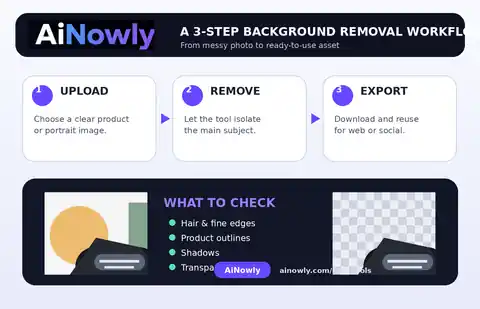
- Open the Background Remover.
- Select the source image.
- Let the tool generate the cutout.
- Inspect the subject edges rather than judging only the thumbnail.
- Download the transparent result if it is suitable for the intended use.
The strongest part of this workflow is that there is very little setup. There are no long editing panels to learn before you can get a usable first result.
Where background removal works best
Automatic cutouts tend to be easiest when the subject is clearly separated from the background. Product photos with strong contrast, portraits against uncluttered scenes, and simple objects with defined edges are the kinds of files where a quick browser tool can save the most time.
Typical use cases include:
- Product images for marketplaces and ecommerce pages.
- Profile photos and team-page portraits.
- Social posts and thumbnails.
- Presentation graphics.
- Simple promotional images and catalog assets.
- Logo cleanup before placing the mark on a new background.
Edge quality is the main thing to check
The difficult part of background removal is not the large, obvious areas. It is the edge detail. Hair, fur, glasses, jewelry, transparent objects, motion blur, soft shadows, and low-contrast boundaries can all challenge automatic segmentation.
Before using the result in an important design, zoom into those difficult areas. A small edge imperfection may be invisible in a social thumbnail but obvious in a large advertisement or product hero image.
This is where expectations matter. A browser utility can be excellent for quick everyday work without replacing the fine manual control of Photoshop or another professional masking tool.
Strengths and limitations at a glance
| Area | What works well | What to watch |
|---|---|---|
| Setup | Fast, focused workflow | Not a full editor |
| Simple product shots | Good fit for quick cutouts | Inspect reflections and shadows |
| Portraits | Useful for profile and social graphics | Hair and soft edges can need checking |
| Output | Transparent PNG workflow | Final quality depends on source image |
| Advanced compositing | Useful as a first step | Professional masking tools offer more manual control |
Source image quality matters
A background remover cannot fully compensate for a poor source. Very small images, severe motion blur, heavy JPEG artifacts, low contrast, and cluttered backgrounds make segmentation more difficult.
If the subject is important, start with the highest-quality source you have. Avoid repeatedly saving and recompressing the image before removing the background.
Browser processing and privacy
AiNowly emphasizes browser-based processing for supported tools. That can reduce unnecessary file transfers compared with workflows that upload every image to a remote account by default.
Even so, users should be careful with highly sensitive images, private documents, unreleased products, or confidential client material. Always check the current tool instructions and privacy information before processing sensitive content.
The real value is the next step
Background removal is rarely the final job. Once you have a transparent subject, you may need to resize it, compress it, place it into a new design, add a watermark, or prepare it for another platform.
For example, a typical ecommerce workflow could be: remove the background, resize the canvas, export the clean PNG, then create a smaller delivery version for the website. AiNowly's Image Resizer, Image Compressor, and Add Watermark tools can support those follow-up steps.
Our product-photo background removal guide goes deeper into ecommerce use cases.
How to judge the result yourself
A useful review habit is to check the output against the final destination rather than asking whether the cutout is “perfect” in isolation.
- For a 120-pixel profile avatar, tiny edge errors may not matter.
- For a marketplace product image, the outline should look clean on a plain background.
- For a presentation, inspect hair and transparent objects at the size they will appear on the slide.
- For large-format advertising, zoom in much more aggressively before approving the result.
This destination-based review is more practical than applying one quality standard to every image.
When a professional editor is still better
Use a full image editor when the output will be used in high-value advertising, large-format print, complex compositing, or detailed commercial retouching. Professional software gives you more control over masks, edge refinement, shadows, transparency, color, and manual cleanup.
The browser remover is better understood as a fast first step or a complete solution for simpler assets.
Who this tool is best for
The tool is a strong fit for people who need occasional cutouts without learning a full editing application: marketplace sellers, small-business owners, students, creators, office teams, and marketers preparing lightweight assets.
It is less suitable as the only tool in a professional retouching workflow where every hair strand, semi-transparent edge, reflection, or shadow needs manual control.
What would make the review stronger?
The most useful future addition would be a measured test set: several clearly defined source images, before-and-after crops, processing times, and a simple scoring method for difficult edges. That would make it possible to compare performance over time instead of relying only on workflow inspection.
That is also the standard we would want before making claims such as “best,” “fastest,” or “more accurate than” a specific competitor.
FAQ
Does it remove backgrounds from every image perfectly?
No automatic remover is perfect on every source. Hair, fur, transparent objects, blur, and low-contrast edges deserve extra inspection.
Does the output support transparency?
The workflow is designed around exporting a transparent PNG after background removal.
Should I keep the original image?
Yes. Keep the source file and treat the cutout as a derivative version for a specific project.
Is this a replacement for Photoshop?
For simple cutouts, it may remove the need to open a full editor. For advanced masking and retouching, a professional editor still offers more control.
What images should I test first?
Start with the images you actually use in your workflow. A tool that performs well on your product catalog or profile photos is more valuable than a generic benchmark that does not match your content.
Final verdict
AiNowly's Free Background Remover is best suited to routine image-preparation tasks where speed and simplicity matter more than pixel-level manual control. It is a practical option for product photos, profile images, thumbnails, social graphics, and other everyday assets.
For important work, inspect difficult edges before publishing and keep the original image. The most reliable way to judge any background-removal tool is to try it with the kind of images you actually use.
Try the workflow: open the AiNowly Background Remover.