If you need to invert image colors online free, you usually want one simple result: turn every color into its opposite and download the finished image without installing an editor or creating an account. Color inversion is useful for photo-negative effects, design experiments, line art, dark-background graphics, accessibility checks, and some scanned-image workflows.
AiNowly provides a dedicated Invert Image Colors tool for this job. This guide explains what inversion actually changes, how to use it well, and how it differs from grayscale, mirroring, and ordinary brightness adjustments.
How to invert image colors online free
The basic workflow is straightforward. Open the AiNowly color inverter, choose the image you want to edit, apply the inversion, inspect the preview, and download the result. You do not need a full desktop photo editor just to create a negative version of a JPG, PNG, or other supported browser image.
Before saving, zoom in on areas with gradients, small text, transparent edges, and skin tones. Inversion is mathematically simple, but the visual result can be dramatic, so a quick preview is worth doing.
What does inverting colors actually do?
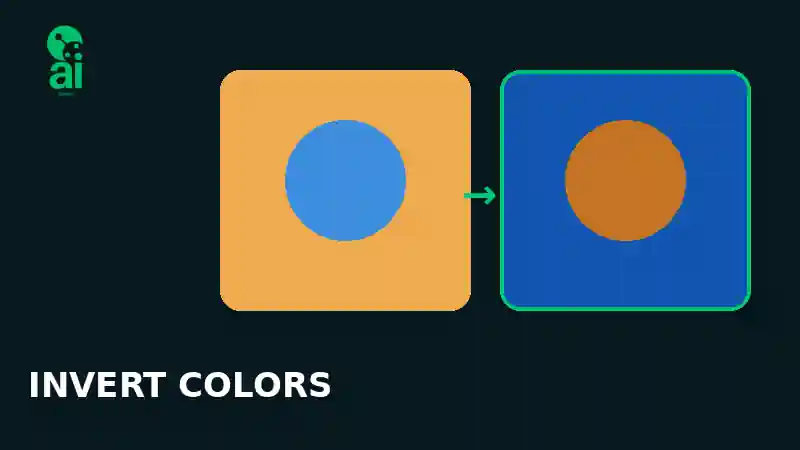
A normal digital image stores visible color through red, green, and blue channels. In an 8-bit RGB image, each channel normally has a value from 0 to 255. A full inversion replaces each channel with its opposite value: 255 - original value.
That means pure black becomes white, white becomes black, red becomes cyan, green becomes magenta, and blue becomes yellow. Midtones are reversed too. The spatial structure of the image does not need to change; the transformation affects color values rather than moving objects around.
This is why a color-inverted photograph resembles a photographic negative. It also explains why applying an exact inversion twice can return the same RGB values to their starting point.
Invert colors vs grayscale: they are not the same
It is easy to confuse inversion with black-and-white conversion. Grayscale removes hue information and represents the image using shades of gray. Inversion keeps the color channels but reverses their values. A blue sky may become yellow-orange rather than gray.
If your goal is a neutral monochrome image, use AiNowly's Grayscale Image tool instead. Our black-and-white image guide explains that workflow in more detail.
Invert colors vs flip or mirror
Another common source of confusion is the word “invert.” Some people use it to mean mirror an image left to right. That is a geometric transformation, not a color transformation. A horizontal flip swaps the left and right positions of pixels while keeping their colors. Color inversion keeps the pixels in place and changes their RGB values.
For mirror effects or orientation fixes, use the Rotate & Flip Image tool. Use the color inverter when you specifically want complementary colors or a negative-photo look.
When a negative photo effect is useful
The obvious use is creative photography. Inversion can turn an ordinary portrait, landscape, texture, or abstract image into a high-contrast visual with unfamiliar colors. Designers can use the result as a starting point for posters, album-style graphics, thumbnails, mood boards, or experimental social assets.
It can also be useful for line drawings. Dark marks on a light background become light marks on a dark background, which can fit certain presentation or design layouts better. For interface mockups, inversion can provide a quick visual stress test, although it should not be treated as a substitute for proper dark-mode design or accessibility testing.
Can color inversion restore a scanned film negative?
Inverting a scanned negative can produce a positive-looking image, but color film often needs more work afterward. Film stocks may include an orange mask, scanner color casts, uneven exposure, or faded dyes. A simple RGB inversion is therefore a useful first step, not always a finished restoration workflow.
For black-and-white negatives, the result can be more direct. For color negatives, expect to adjust white balance, contrast, levels, or individual channels after inversion if accurate color matters.
Does inverting image colors reduce quality?
The inversion calculation itself does not require resizing or blurring the image. Quality changes usually come from the export format and compression settings rather than from the color reversal. If a tool exports a JPEG again, the new JPEG can introduce some lossy compression. PNG can preserve pixel detail losslessly, although its file size may be larger.
If your output becomes too large for email or a website, use the AiNowly Image Compressor afterward. Our image compression guide explains how to balance size and visual quality.
What happens to transparent PNG backgrounds?
Transparency is stored separately from RGB color in formats such as PNG. A well-implemented inversion can reverse the visible RGB channels while leaving the alpha channel unchanged, so fully transparent areas remain transparent. This matters for logos, icons, overlays, and cut-out graphics.
Always inspect semi-transparent edges before publishing. Anti-aliased pixels around a logo or subject can look different after a strong color transformation even when transparency itself is preserved.
Best workflow for logos and graphics
For a logo, first make sure the background is already correct. If you need transparency, use the Background Remover before experimenting with inversion. Then invert the graphic and compare it against the actual background where it will be used.
If you are trying to discover a new brand palette rather than create a literal negative, the Color Palette Extractor may be a better next step because it helps identify the dominant colors in an image.
Common mistakes when reversing image colors
The first mistake is assuming an inverted image is automatically suitable for dark mode. Real dark-mode interfaces use deliberate color systems, contrast targets, and semantic states; a global negative effect can make brand colors, photos, and status colors misleading.
The second is publishing without checking text. If an image contains words, inversion changes their colors but does not improve legibility by itself. The third is repeatedly saving a JPEG through multiple editing steps. If possible, perform your transformations and then make one final JPEG export.
How to get a cleaner result
Start from the highest-quality source you have. Avoid screenshots of images when the original file is available. If the composition needs cropping, use the Image Cropper first. If the dimensions are wrong, use the Image Resizer. Then invert the colors and export the final version.
This order keeps the workflow predictable and avoids spending time editing pixels that will later be cropped away.
Frequently asked questions
Is invert the same as negative?
For ordinary digital photo editing, “invert colors” and “negative effect” usually refer to the same RGB reversal. The word negative comes from photographic film; invert describes the digital operation.
Can I invert a photo on my phone?
Yes. A browser-based image tool can be used on modern mobile browsers, so you do not necessarily need a dedicated editing app for a one-off inversion.
Will an inverted PNG stay transparent?
It can. Transparency is controlled by the alpha channel, which can remain unchanged while RGB values are inverted. Preview the output before using it in production.
Can I undo an inversion?
If the transformation is an exact full RGB inversion with no other destructive edits, applying the same inversion again returns the RGB values to their original values. Keeping the original file is still the safest workflow.
Final takeaway
If your goal is to invert image colors online free, you do not need a heavyweight editor. Use AiNowly's Invert Image Colors tool, preview the negative effect, check transparency and text, and export in a format that matches your next use.
For related edits, you can move directly into grayscale conversion, brightness and contrast adjustment, rotation and flipping, or image compression without turning a simple edit into a complicated workflow.