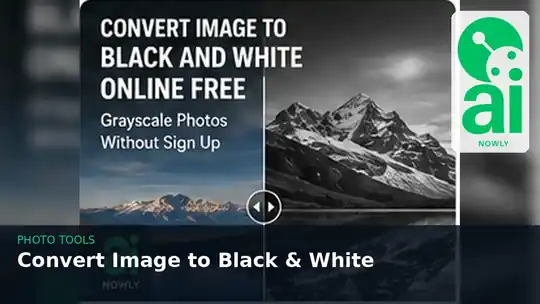
Turning a color photo into black and white sounds simple, but a good grayscale image is more than a picture with the saturation removed. Contrast, brightness, subject separation, file format, and the original lighting all affect whether the final image looks crisp and intentional or flat and muddy.
If you want to convert image to black and white online free, AiNowly’s Grayscale Image tool gives you a fast browser-based workflow without requiring an account. This guide explains how to use it, what grayscale conversion actually does, when black-and-white images work best, and how to get a cleaner result for websites, documents, product graphics, portraits, and social media.
Convert image to black and white online free
- Open the AiNowly Grayscale Image tool.
- Select the JPG or PNG image you want to convert.
- Apply the grayscale conversion and review the preview.
- Download the finished black-and-white image.
For most everyday jobs, that is all you need. Before converting an important image, however, it helps to understand why two color photos can produce very different grayscale results.
Grayscale vs. black and white: what is the difference?
People often use “black and white” and “grayscale” interchangeably, but technically they can describe different things. A grayscale image can contain many shades between pure black and pure white. Those intermediate gray values preserve shadows, skin tones, clouds, texture, and depth.
A strictly binary black-and-white image contains only two values: black and white. That can be useful for line art, some document workflows, masks, or high-contrast graphics, but it usually looks too harsh for photography. When someone searches for a black-and-white photo converter, grayscale is normally the result they actually want.
The browser and web standards ecosystem supports image processing through technologies such as the HTML Canvas API. MDN documents Canvas as a way to draw and manipulate graphics with JavaScript, which is why lightweight photo transformations can be performed directly in modern browsers.
Why some photos look great in grayscale and others do not
Color gives your eyes an easy way to distinguish objects. A red shirt against green foliage may stand out strongly in color even when the two areas have similar brightness. Once the color information is removed, they can collapse into nearly identical gray tones.
That is why the strongest black-and-white photographs usually have good tonal separation: clear differences between highlights, midtones, and shadows. Texture and directional light also become more important because color is no longer carrying the composition.
Before converting, ask three questions: Is the subject brighter or darker than the background? Are important details visible in the shadows? Does the image still have a clear focal point when color is removed? If the answer is yes, it is a strong candidate for grayscale.
Best uses for a free black-and-white image converter
Portraits and profile photos
Grayscale can make portraits feel cleaner and more timeless because distracting clothing or background colors disappear. Faces with directional lighting often work especially well because the shadows define shape. If you need a profile image after conversion, use the AiNowly Image Cropper to tighten the composition or follow our guide to making a round profile picture online.
Documents, handouts, and presentations
Black-and-white graphics can be useful when a document will be printed without color. Converting decorative photos before placing them in a PDF also lets you preview how the document may look on a monochrome printer. If you are assembling several images into one document, the Images to PDF tool can handle the next step.
Web design and brand graphics
Designers frequently use grayscale imagery behind headings, buttons, or colored brand elements because reduced color competition can make interface elements easier to notice. Grayscale can also help you judge visual hierarchy: if a design only works because of bright colors, its contrast structure may need improvement.
Product and social graphics
A monochrome version of a photo can be useful for promotional backgrounds, memorial posts, editorial graphics, or minimalist campaigns. After converting, you can use the Image Resizer to prepare the correct pixel dimensions for your destination.
Step-by-step workflow for better grayscale images
1. Start with the best original. Avoid repeatedly downloading and re-saving a small JPEG before conversion. Beginning with the highest-quality version gives the grayscale conversion more detail to work with.
2. Correct brightness first when necessary. If the photo is severely underexposed or washed out, fix the tonal range before or after grayscale conversion. AiNowly’s Brightness & Contrast tool is useful here, and our brightness and contrast guide explains how to avoid crushed shadows and blown highlights.
3. Convert to grayscale. Open the Grayscale Image tool, add your image, and apply the conversion. Look at the subject rather than just checking whether the color disappeared.
4. Inspect dark and bright areas. Make sure dark hair, clothing, or products have not merged into the background. Likewise, check white shirts, clouds, paper, or reflective surfaces for lost detail.
5. Crop for stronger composition. Removing unnecessary edges can make a monochrome image feel much more deliberate. For avatars, you can also crop a square first and then use it in circular profile layouts.
6. Optimize the final file. If the image is going on a website or into an email, do not upload a 5 MB file when a much smaller version looks the same at its displayed size. Our guide to compressing images without visibly losing quality covers this in detail.
Contrast matters more after color is removed
Contrast is the difference between light and dark areas. In color photography, two similarly bright objects may still be easy to distinguish because their hues differ. In grayscale, luminance differences have to do more of the work.
Do not assume that maximum contrast is automatically better. Excessive contrast can turn subtle shadows into solid black and bright highlights into featureless white. A useful adjustment should increase separation while preserving important texture.
The W3C’s Web Content Accessibility Guidelines discuss contrast in the context of readable interface content. A photograph is not the same thing as text, but the broader principle is useful: visual information becomes harder to distinguish when foreground and background values are too similar.
Should you download black-and-white images as JPG or PNG?
Choose based on the image rather than the fact that it is grayscale. JPG is usually efficient for photographs with continuous tones and can produce relatively small files. PNG is useful for graphics, screenshots, text-heavy images, sharp edges, or images where lossless storage is important.
Converting a JPEG photo to PNG does not restore detail that was already lost through JPEG compression. Likewise, simply choosing PNG does not automatically make an image look better. If you need to change formats for compatibility, AiNowly provides both a PNG to JPG converter and a JPG to PNG converter.
Common mistakes when converting photos to black and white
Using a tiny source image. Grayscale conversion cannot invent missing resolution. If the source is blurry or heavily compressed, the output will still be blurry.
Ignoring the background. A colorful background that looked separated from the subject can become the same gray value after conversion. Check subject edges carefully.
Crushing the shadows. Increasing contrast too far may erase detail in dark hair, suits, night scenes, or product surfaces.
Over-brightening skin. Raising brightness aggressively can remove facial texture. Make smaller adjustments and judge the entire tonal range.
Uploading unnecessarily large dimensions. A 4000-pixel-wide photo is unnecessary if it will display at 800 pixels. Resize it to a sensible output size, especially for websites.
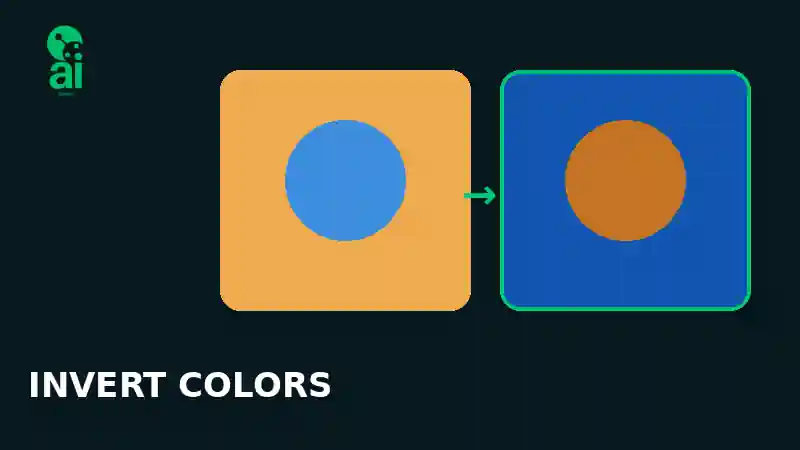
Confusing grayscale with color inversion. Grayscale removes color information; inversion reverses color values to create a negative-like effect. If you actually need a photographic negative, use the Invert Image Colors tool instead.
Why browser-based image editing can be useful
For simple transformations, browser-based tools reduce friction: there is no desktop editor to install and no account workflow to complete. This is especially useful when you are working on a shared computer or need a quick one-off conversion.
Privacy claims should always be judged tool by tool. AiNowly describes its Grayscale Image tool as part of its browser-focused utility suite. For sensitive images, you should still review the tool’s current privacy information and avoid processing material when you are not comfortable with the workflow.
Frequently asked questions
Can I convert an image to black and white for free?
Yes. AiNowly’s Grayscale Image tool is designed for free online grayscale conversion without requiring a signup.
Can I make a photo black and white on my phone?
Yes. Open the tool in a modern mobile browser, select an image from your device, convert it, and save the result. The interface is intended to work without installing a full photo-editing application.
Does converting to grayscale reduce image quality?
The visual transformation removes color by design, but it does not inherently require you to reduce the pixel dimensions. Perceived quality can still be affected by the source image, output format, subsequent compression, and repeated re-saving.
Can a transparent PNG be grayscale?
Yes. Grayscale describes the visible color channels, while transparency is represented separately by an alpha channel in formats that support it. The PNG specification defines support for alpha transparency.
Can I restore the original colors later?
Not reliably from a flattened grayscale copy. Once the original color information has been discarded, a grayscale file does not contain enough information to reconstruct the exact original colors. Keep your original color image if you may need it again.
Final thoughts
The fastest way to convert image to black and white online free is straightforward: start with a clean source image, use the AiNowly Grayscale Image tool, inspect tonal separation, and make only the brightness or contrast adjustments the picture actually needs.
The biggest improvement usually does not come from a complicated filter. It comes from choosing an image with strong light, clear subject separation, and enough resolution, then exporting it at the right dimensions and format for its final use.